rescueOS
rescueOS不是一个日常使用的系统,而是一个救援系统,是专门为诺基亚N900开发的救援解决方案,以initrd镜像的形式发布。
主要有以下几个功能:
- 挂载maemo根分区(/)
- EMMC访问(可挂载maemo系统的home和MyDocs分区)
- 重置Lock code
- WiFi支持
- USB大容量存储模式
- USB网络
- 电池充电
用户必须熟练使用Linux命令行
rescueOS只针对maemo系统,meego不可用
rescueOS仅加载到内存中运行,不会对原有系统做任何更改
rescueOS使用场景
rescueOS适用于以下情况:
- maemo系统无法正常启动
- 重新先刷机前的数据备份
- maemo无法使用时为电池充电
- 修改内置存储(EMMC)分区表
- 备份/恢复maemo根分区(rootfs)
- fsck检查文件系统
- 重置lock code
使用flasher引导rescueOS
下载rescueOS_n900_kernel_1.3.zImage和rescueOS-1.3.img
- rescueOS-1.3.img https://url98.ctfile.com/f/18418398-17569905439763-75d5a4?p=3705
- rescueOS_n900_kernel_1.3.zImage https://url98.ctfile.com/f/18418398-17569905439762-3b0074?p=3705
有以下两个flasher工具可用:
0xFFFF - 仅适用于GNU/Linux的Fiasco固件刷写工具
Ubuntu和Debian中软件包名为0xffff http://rn.jqx.me:1234/n900/tools/
maemo_flasher v3.5 - 诺基亚原厂专用刷机工具
适用于Windows, MacOS, GNU/Linux http://rn.jqx.me:1234/n900/Maemo_Flasher/
文档:http://wiki.maemo.org/Documentation/Maemo_5_Developer_Guide/Development_Environment/Maemo_Flasher-3.5
关闭N900,启动刷机工具,并准备加载rescueOS
- 0xFFFF
0xFFFF -m kernel:rescueOS_n900_kernel_1.3.zImage -m initfs:rescueOS-1.3.img -l -b 'rootdelay root=/dev/ram0'- maemo_flasher
flasher-3.5 -k rescueOS_n900_kernel_1.3.zImage -n rescueOS-1.3.img -l -b"rootdelay root=/dev/ram0"会看到类似"suitable device not found…“的提示,刷机程序等待设备连接,用数据线把N900连接到电脑,程序会检测到设备并上传启动rescueOS,然后退出。
通过U-Boot从TF卡启动rescueOS
如果你已经安装了U-Boot(https://talk.maemo.org/showthread.php?t=81613)并且电池电量耗尽,以至于刷机无法进行,可以使用这种方法。
你将需要来自u-boot-tools包的mkimage程序。
准备所需文件:
mkimage -A arm -O linux -T kernel -C none -a 80008000 -e 80008000 -n kernel -d rescueOS_n900_kernel_1.3.zImage rescueOS_n900_kernel_1.3.uImage
mkimage -A arm -O linux -T ramdisk -C none -a 0 -e 0 -n initrd -d rescueOS-1.3.img rescueOS-1.3.uimg
cat >boot.cmd <<EOF
setenv bootargs rootdelay root=/dev/ram0;
setenv setup_omap_atag 1;
setenv mmckernfile rescueOS_n900_kernel_1.3.uImage;
setenv mmcinitrdfile rescueOS-1.3.uimg;
setenv mmcscriptfile;
run trymmckerninitrdboot;
EOF
mkimage -c none -A arm -T script -d boot.cmd boot.scr将TF卡第一个分区格式化为ext2/3/4或FAT,把生成的文件(不包括 boot.cmd)放到根目录。
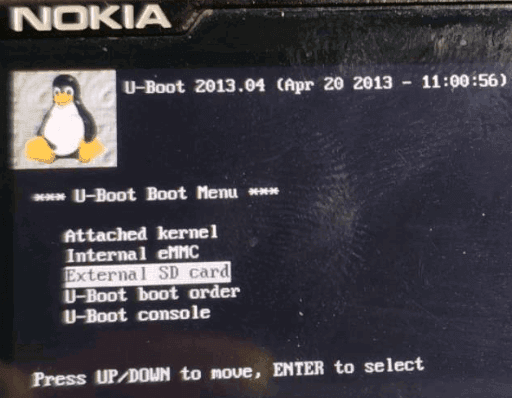
关闭N900,打开键盘,开机通过U-Boot菜单选择External SD card启动rescueOS。
如何使用rescueOS
引导进入系统后,默认进入bash。
/rescueOS/目录包含一些用于各种任务的脚本,比如大容量存储模式、maemo根分区挂载、USB网络、WiFi设置等。
挂载maemo根分区
/rescueOS/mount-maemo-root.sh以上脚本会将maemo的根分区关在至/mnt/maemo
卸载分区用以下脚本
/rescueOS/umount-maemo-root.sh重置Lock code
code_reset执行以上命令会将Lock code重置为默认 (‘12345’).
USB网络
/rescueOS/usbnetworking-enable.sh开启USB网络如下操作:
ifconfig usb0 192.168.2.15 up
ifconfig usb0 netmask 255.255.255.0
route add 192.168.2.14 usb0
关闭USB网络
/rescueOS/usbnetworking-disable.shUSB大容量模式
/rescueOS/mass-storage-enable.sh将前两个EMMC分区设为大容量存储设备,分别对应maemo中的/home和/home/user/MyDocs目录。
退出USB大容量模式,先在电脑上弹出设备,然后执行以下脚本。
/rescueOS/mass-storage-disable.shWiFi配置
使用wpa_supplicant管理wifi,仅支持psk,不支持eap,一般路由器都可用。 Give the following a try:
# essid为wifi名,password为密码
wpa_passphrase [essid] [password] > /run/wlan.conf
sh /rescueOS/setup-wpa-wifi.sh
# 设置dhcp
udhcpc -i wlan0
电池充电
使用ShadowJK的charge21脚本实现,仅用于充电器连接线充电, 因为提供了950 mA电流,而USB不合适。
/rescueOS/charge21.bash关机
poweroff root密码
rootme
快捷键
- mmr -> 挂载maemo根分区
- ummr -> 卸载maemo根分区
- enftp -> 开启ftp
- mse -> 开启大容量模式
- msd -> 关闭大容量模式
- usbne -> 开启usb网络
- usbnd -> 关闭usb网络
- chargebat -> 开启电池充电
- telnetd -> 开启telnet服务
- Tab: Shift + Space
- ESC: Fn (Arrow) + Ctrl
文件传送
使用
enftp开启ftp服务,可通过usb网络或者wifi匿名访问。使用
mse开启usb大容量模式。